網站架構#
開發環境#
Ubuntu 22.04 LTS
Python 3.10.12
sphinx-book-theme
MyST-NB (MyST is included)
安裝指令#
1pip install sphinx-book-theme
2pip install sphinx-copybutton
3pip install sphinx-togglebutton
4pip install myst-nb
5pip install jupyter
6pip install matplotlib
7pip install pandas
或者可以使用我提供的 requirement.txt 來安裝。
1pip install -r requirement.txt
Tip
可以用下面的指令來建立獨立的 virtual environment 。
1python3 -m venv venv
2source venv/bin/activate
設置環境#
初始化環境#
使用下面的指令將 project 初始化
1sphinx-quickstart
2rm -rf source/index.rst
Caution
使用指令之後會有 5 個步驟如下:
Separate source and build directories (y/n) [n]:
Project name:
Author name(s):
Project release []:
Project language [en]:
如果要照我的教學實做的話第一個選項必須要是 y 。 其它 4 個選項可以依照需求去選。此外,這 4 個選項之後也可以在指令產出的 conf.py 去修改設定
設定 conf.py#
完整的設定可以參考這個 Project 的 conf.py 。下面會一段一段解釋一些設定。
設定要使用的外掛套件#
1    extensions = [
2        "sphinx_copybutton",
3        "sphinx_togglebutton",
4        "myst_nb",
5        "sphinx.ext.graphviz",
6    ]
設定 html 相關的選項#
 1   html_theme = 'sphinx_book_theme'
 2
 3   html_logo = "_static/{your logo}"
 4   html_title = "{your title}"
 5
 6   html_theme_options = {
 7        "use_download_button": True,
 8        "use_source_button": True,
 9        "use_edit_page_button": True,
10        "use_repository_button": True,
11        "use_issues_button": True,
12        "repository_provider": "{your-provider}",
13        "repository_url": "https://{your-provider}/{org}/{repo}",
14        "repository_branch": "main",
15        "path_to_docs": "source"
16   }
Note
html_logo與html_title是用來對左側 sidebar 做客製化的設定,可以參考 Customize your left sidebar設定
use_download_button讓你可以下載這個網頁的 markdown 原始碼。可以參考 Add a download page button其它的設定與 remote repository 相關的設定。 可以參考 Buttons that link to source files
設定 myst#
這個外掛是讓 Sphinx 可以使用 .md 作為 source 。
 1myst_enable_extensions = [
 2    "amsmath",
 3    "colon_fence",
 4    "deflist",
 5    "dollarmath",
 6    "html_image",
 7]
 8
 9myst_url_schemes = ("http", "https", "mailto")
10myst_number_code_blocks = ['c', 'c++', 'java', 'python', 'html', 'css', 'javascript', 'bash']
11myst_heading_anchors = 4
Note
myst_url_schemes這個設定是用來設定哪些格式會被判定為外部連結,可以參考 Set URL scheme defaults ‼️其它相關的設定可以參考 Global configuration
設定 myst-nb#
這個外掛是讓 Sphinx 可以使用 .ipynb 作為 source 。
1number_source_lines = True
2nb_number_source_lines = True
Note
這兩個設定是讓 code cell 可以顯示行數,更多相關設定可以參考 Configuration
設定 graphviz#
這個設定會影響當用 Graphviz 畫圖時所用的格式
1graphviz_output_format = "svg"
Note
關於
graphviz_output_format更多的說明可以參考 sphinx.ext.graphviz
發布內容#
設定 GitHub Pages#
參考下面圖這張圖設定 github 的 repository
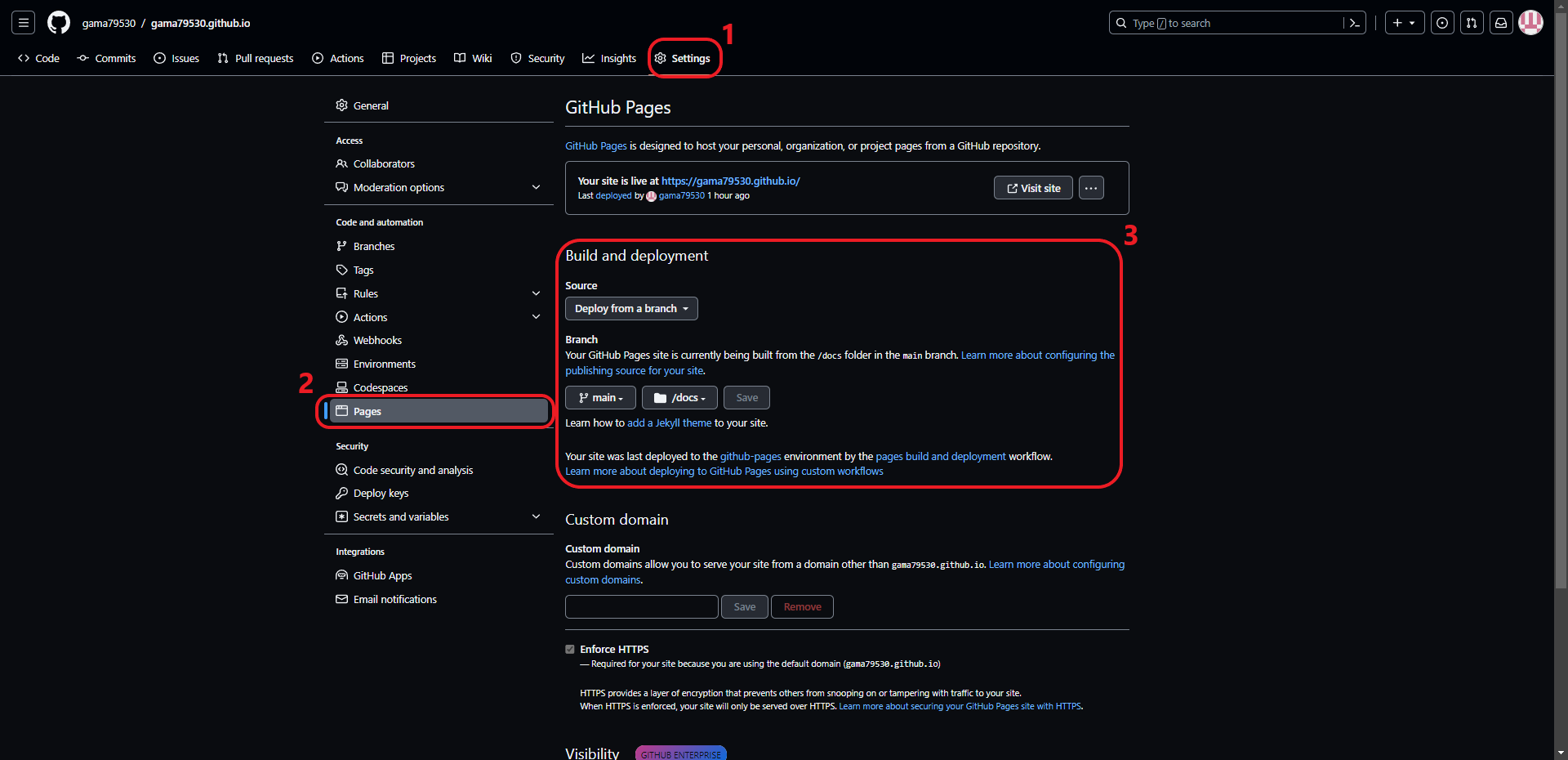
使用 project 提供的 makefile 指令發布#
清除之前產出的相關檔案#
1make clean
產出檔案到 build 方便預覽#
1make preview
可以從 build/html/index.html 作為首頁去預覽
產出要上傳到 github 發布的檔案#
1make publish